
The Ultimate Higgsfield AI Eye Zoom Tutorial for Creators & Developers
Master the Higgsfield AI Eye Zoom effect with this step-by-step tutorial. Learn setup, prompts, advanced settings, post-generation considerations, and more.

Ever tried to create a dramatic eye-zoom effect, only to end up with shaky frames or unnatural motion? You want cinematic precision without complex editing steps. Manual zoom adjustments and frame-by-frame edits slow you down and break creative flow.
That friction adds up quickly. Inconsistent zoom effects reduce engagement, especially in short-form videos. This is where Higgsfield AI Eye Zoom becomes essential. It delivers smooth, context-aware eye zoom effects.
In this guide, you’ll learn how Higgsfield AI eye zoom works, why it matters, and how to use it effectively for high-quality visual output.
At a Glance
- The Higgsfield AI Eye Zoom effect pulls viewers into a subject’s eyes using automated cinematic camera motion, creating emotional and immersive visuals without manual editing.
- Use a clear close-up image, a short mood-driven prompt, and the Eyes In camera control to generate smooth, viral-ready clips in minutes.
- The Higgsfield interface offers limited control over motion intensity, safety filters, and automation once a video is rendered. You need to resize it to 9:16 (or another format), loop the clip, and add audio in a video editor to maximize engagement on short-form social platforms.
- Segmind adds motion-strength control, NSFW filtering, webhooks, and PixelFlow automation to turn eye-zoom effects into custom, production-ready workflows.
Why The AI Eye Zoom Trend Is Taking Over Cinematic Content
The AI Eye Zoom motion delivers cinematic impact by drawing viewers from a wider frame toward directly into a subject’s eyes. Powered by Higgsfield AI, it replaces complex editing with automated camera movement. The result is fast, emotional, and highly engaging visual storytelling.
- The visual concept: The AI Eye Zoom trend, also known as the "Lost in Your Iris" effect, starts with a close-up of an eye and slowly zooms inward. This movement creates the illusion of getting lost inside the iris, instantly capturing the viewer's attention.
- Smooth motion integration: Eyes In works smoothly with other camera motion effects such as Crash Zoom and Orbit. You can layer movements to build dynamic shots that adapt to different stories and visual styles.
- Cinema-grade visual quality: It makes professional filmmaking techniques accessible to everyone. You can produce high-impact, cinematic visuals that previously required expensive equipment and large production budgets.
Why it matters for developers and creators: If you create short-form content, you can turn a single portrait into a dramatic eye-focused clip in minutes. If you are a developer, you can generate compelling visuals for product demos, trailers, or interactive storytelling without extensive post-production.
Also Read: The Ultimate Guide to Higgsfield AI Video Effects and Generators
With the creative value clear, the next step is execution. Below, you’ll learn how to create the effect step by step.
Step-By-Step Tutorial To Create The Eye Zoom Trend In Higgsfield AI
This section walks you through creating the viral Eye Zoom effect from start to finish. By combining a clear reference image, a simple prompt, and the Eyes In camera control, you can quickly generate cinematic results. The process is flexible, beginner-friendly, and designed for fast visual storytelling.
Step 1: Open Higgsfield And Find The Right Camera Effect
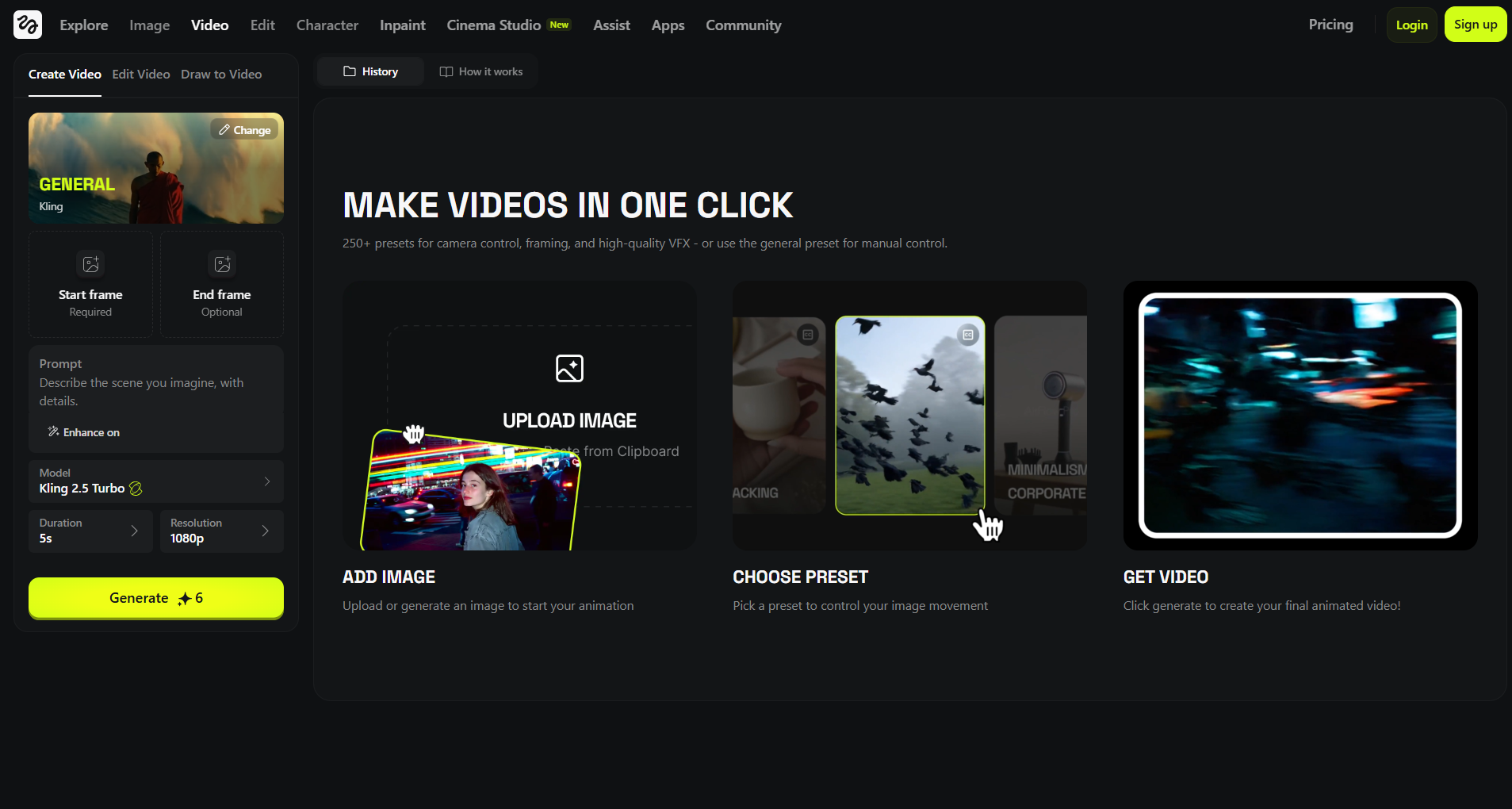
Go to the Higgsfield AI official homepage and scroll to the Camera Controls section. You will see “Eyes In” listed as an available camera effect. This is the control you need for the viral Eye Zoom trend.
Step 2: Enter The Generation Studio
Select Eyes In, then click Generate. This takes you into the creation studio, where you will set your image and prompt. The left panel is where most of your work happens. Here, you'll see a short visual guide.
Step 3: Upload A Reference Image
Add a reference image by uploading your own photo or using the platform’s image tools. For this trend, personal photos usually feel more authentic and relatable.
Use this checklist before you upload:
- Image clarity: sharp and clean, with no blur or distorted angles
- Eye visibility: close-up framing, with the eye clearly shown
- Lighting: even front lighting, without harsh shadows
Pro Tip: If the eye takes up more of the frame, the final Higgsfield AI zoom-in effect feels smoother and more dramatic.
Step 4: Write A Simple Prompt That Matches The Mood
Your prompt guides the scene style while the camera effect handles the zoom. Keep your prompt descriptive but not overly long.
Try a prompt like this instead: “A cinematic close-up of a calm mid-aged man, with gentle light reflections in the eye, minimal movement, and a slow emotional transition that feels intimate and immersive.”
Pro Tip: Use short phrases and clear mood words, and let the Higgsfield AI video generator features do the heavy lifting.
Step 5: Decide If You Want Prompt Enhancement
Higgsfield often expands your text automatically with an enhancer. If you want complete control, turn enhancement off at the bottom of the prompt field. If you wish to speed it up, leave it on and adjust later.
Key Insight: Enhancement helps when you are unsure what to write, but it can add details you did not intend to include.
Step 6: Review Model And Advanced Settings
Free users usually start with the Lite model, which can be slower during peak times. Paid options provide access to the Standard and Turbo models, which offer faster processing and stronger output quality.
You can also open the advanced settings menu to adjust:
- Video length, usually 3 or 5 seconds
- Seed for repeatable results
- Inference steps for better detail, with a higher cost
Did You Know? This customization supports different emotional impacts and storytelling needs, but none of these advanced settings are mandatory to generate your eye-zoom video.
Step 7: Generate, Preview, And Refine
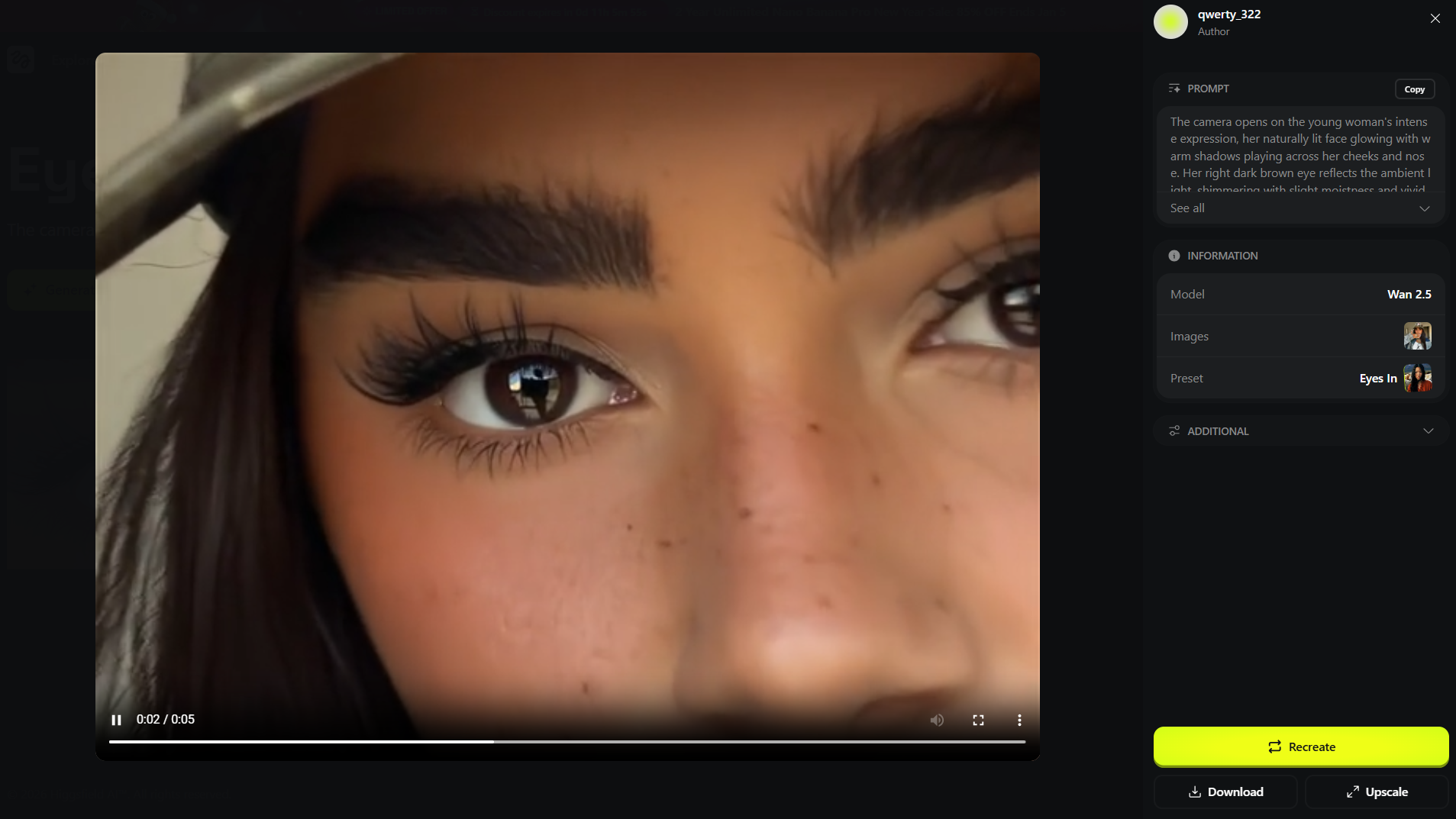
Click Generate and wait for the render to complete. Preview your result and make minor edits if needed.
Common quick fixes include:
- Swap in a sharper image if the zoom feels noisy.
- Simplify the prompt if the motion looks too busy.
- Adjust steps if details look soft.
Once it looks right, download the final video from the preview screen.
Also Read: How Fashion Brands Are Turning Photos Into Viral Videos With Seedance 1.0 Pro
Once your eye zoom clip is generated, the work doesn’t stop there. A few simple post-download steps can help you adapt the video for social platforms and maximize its visual impact.
Post-Download Considerations Before Publishing
Once your video is downloaded, a few quick edits will help you turn it into a polished, platform-ready clip.
- Move the clip to a video editor: Higgsfield does not include built-in editing tools, so import your video into a dedicated editor. This gives you complete control over layout, timing, and sound.
- Resize for social media formats: Higgsfield generates videos using the same aspect ratio as your reference image. This ratio is rarely ideal for social platforms. Change the canvas to 9:16. This format is optimized for mobile viewing on platforms like TikTok and Instagram.Pro Tip: Always resize before adding text or music, so nothing gets cropped later.
- Refine the video quality: Use the ESRGAN video upscaler on Segmind to upsample 1080p to 4K for sharper, clearer video.
- Create a continuous loop: Duplicate the video layer, then align the clips back-to-back using Segmind's AI Video Loop Maker. This looping style keeps viewers watching longer and matches how this trend performs on short-form platforms.
- Add audio and final touches: Finish by adding trending music or subtle ambient sound. Keep visuals clean and avoid heavy effects, since the eye zoom should remain the focal point.
Also Read: Make High Quality AI Videos in Seconds with PixVerse 3.5
Higgsfield delivers strong results quickly, but its interface limits deeper customization and automation. To gain finer control and scale such effects efficiently, you need a more flexible workflow layer that Segmind provides.
Where Segmind Fits Into Your Eye Zoom Workflow
Once a video is rendered, you have minimal control over motion intensity, safety checks, or downstream processing. Segmind acts as the workflow and scaling layer, removing these constraints. With Segmind, you are not locked into a single preset-style output. You can customize motion behavior and automate production at scale.
Here's what Segmind adds beyond Higgsfield’s interface:
- Motion strength control: It lets you control how intense the zoom motion feels. You can set values closer to 0.3 for subtle emotional focus or push toward 1.0 for dramatic cinematic impact. (Range: 0 to 1)
- Built-in NSFW filtering: You can enable an NSFW check to block explicit content automatically. This is critical for public-facing apps, user-generated workflows, or brand-safe campaigns.
- Webhook-based automation: Segmind supports webhooks to notify your system when rendering is complete. This allows you to trigger downloads, edits, or publishing steps without manual monitoring.
- Automation Pipelines: Integrate eye-zoom–style effects with multiple other models with PixelFlow. Connect via API when you want the process running inside an app or tool.
Segmind transforms eye zoom effects from a single creative experiment into a controlled, customized media workflow.
Note: On Segmind, an average eye-focused video generation completes in approximately 175.05 seconds and costs between $0.16 and $0.70 per run. You pay only for what you use, with no hidden fees or long-term commitments, making it easy to experiment.
Final Thoughts
Higgsfield AI eye zoom delivers its best results when you think in terms of emotion and focus rather than complex editing. Precise facial framing, stable lighting, and intentional mood cues help the model produce smooth, immersive motion. Start with simple setups, then refine your visuals as you understand how the zoom responds to different inputs.
However, as your needs grow, limitations around control and scale become more noticeable. This is where Segmind adds value by turning eye zoom effects into repeatable, customizable workflows. You gain precise controls, automation, and production-ready outputs without manual overhead. That enables you to create with intention, experiment responsibly, and scale confidently once your visual style is defined.
FAQs
1. Does the Eye Zoom effect work with glasses or contact lenses?
Yes, but reflections can affect results. Clear lenses work better than reflective coatings. If glare covers the iris, the zoom may feel less natural or lose depth during inward motion.
2. Why does the zoom sometimes feel too aggressive or sudden?
This usually happens when the source image is too tight or lacks background context. Giving the model slight framing space helps the camera movement feel smoother and more intentional.
3. Can I reuse the same image to generate multiple eye zoom variations?
Yes. Using the same image with different prompts or motion values is common. This approach helps test emotional tone and pacing without reshooting or changing the visual base.
4. Is Eye Zoom appropriate for brand or commercial content?
Yes, it can be effective if used sparingly. The effect works best for emotional storytelling, product reveals, or artistic branding rather than informational or instructional content.
5. What type of content works best with the Higgsfield Eyes In effect?
Higgsfield Eyes In is ideal for scenes that rely on emotional connection or character emphasis. It works well in narrative films, music videos, ads, and social clips during moments of tension, realization, intimacy, or dramatic shifts across multiple genres.