
How to Create Earth Zoom Out Higgsfield AI Videos: A Simple 2026 Guide
Create cinematic videos from images using the Earth Zoom Out Higgsfield AI effect. Learn about structured prompts, post-edit optimization, and best use cases.

Creating cinematic space-to-planet visuals often feels harder than it should, especially when you want a realistic Earth-zoom-out Higgsfield AI effect without a complex VFX pipeline.
As a developer or creator, you test multiple tools, tweak prompts endlessly, and still end up with flat or unrealistic results. This becomes a real problem when your launch video, product teaser, or cinematic reel fails to grab attention within seconds. Poor visual scale weakens storytelling and reduces engagement across platforms.
That’s why learning how to create a believable AI-powered Earth zoom out matters. It helps you create visuals that look cinematic, feel realistic, and actually work for real-world marketing, product, and content use cases.
In a Nutshell
- The Earth Zoom Out effect creates cinematic perspective shifts. It does so by transforming a single image into a smooth zoom from ground level to outer space using AI-driven motion and scale transitions.
- Higgsfield AI enables fast generation of Earth Zoom Out videos through reference images, structured prompts, and predefined camera behavior without complex VFX pipelines.
- Post-download editing is essential for performance on social platforms because resizing, looping, and light enhancements improve framing, watch time, and visual impact.
- The effect delivers value across multiple areas, including social media, education, marketing, travel, film previsualization, and corporate storytelling.
- Segmind turns Earth Zoom Out into a scalable workflow by adding motion control, automation, faster processing, and PixelFlow pipelines for production-ready outputs.
The AI Earth Zoom Out Effect: Turning a Single Frame into a Cinematic Perspective Shift
The AI Earth Zoom Out has quickly become one of the most viral cinematic video effects. It begins with a close-up shot and smoothly pulls back to reveal a city, a country, Earth, and finally outer space. At a high level, the format creates the illusion of a single, continuous camera movement. You can start from a person, object, or landmark, then transition smoothly through buildings, clouds, and atmosphere into orbit.
The system blends AI rendering, satellite-style imagery, and 3D scene understanding to maintain realism throughout the transition. It also taps into the “overview effect,” a well-documented cognitive shift experienced when viewing Earth from space.
Key capabilities behind the AI Earth Zoom Out include:
- AI-powered zoom effects: Generate cinematic zoom-out sequences directly from images or text descriptions.
- Multi-scale transitions: Move smoothly from human-scale scenes to planetary and cosmic perspectives.
- Physics-based camera simulation: Replicate real-world lens behavior with natural focal and motion changes.
- High-detail Earth visuals: Maintain consistent quality using satellite-style textures and dynamic atmospheric effects.
Also Read: The Ultimate Guide to Higgsfield AI Video Effects and Generators
Together, these elements make the AI Earth Zoom Out a powerful motion effect for creators and developers seeking cinematic results without the complex production overhead.
Step-by-Step Guide to Creating a Higgsfield AI Earth Zoom Out Video
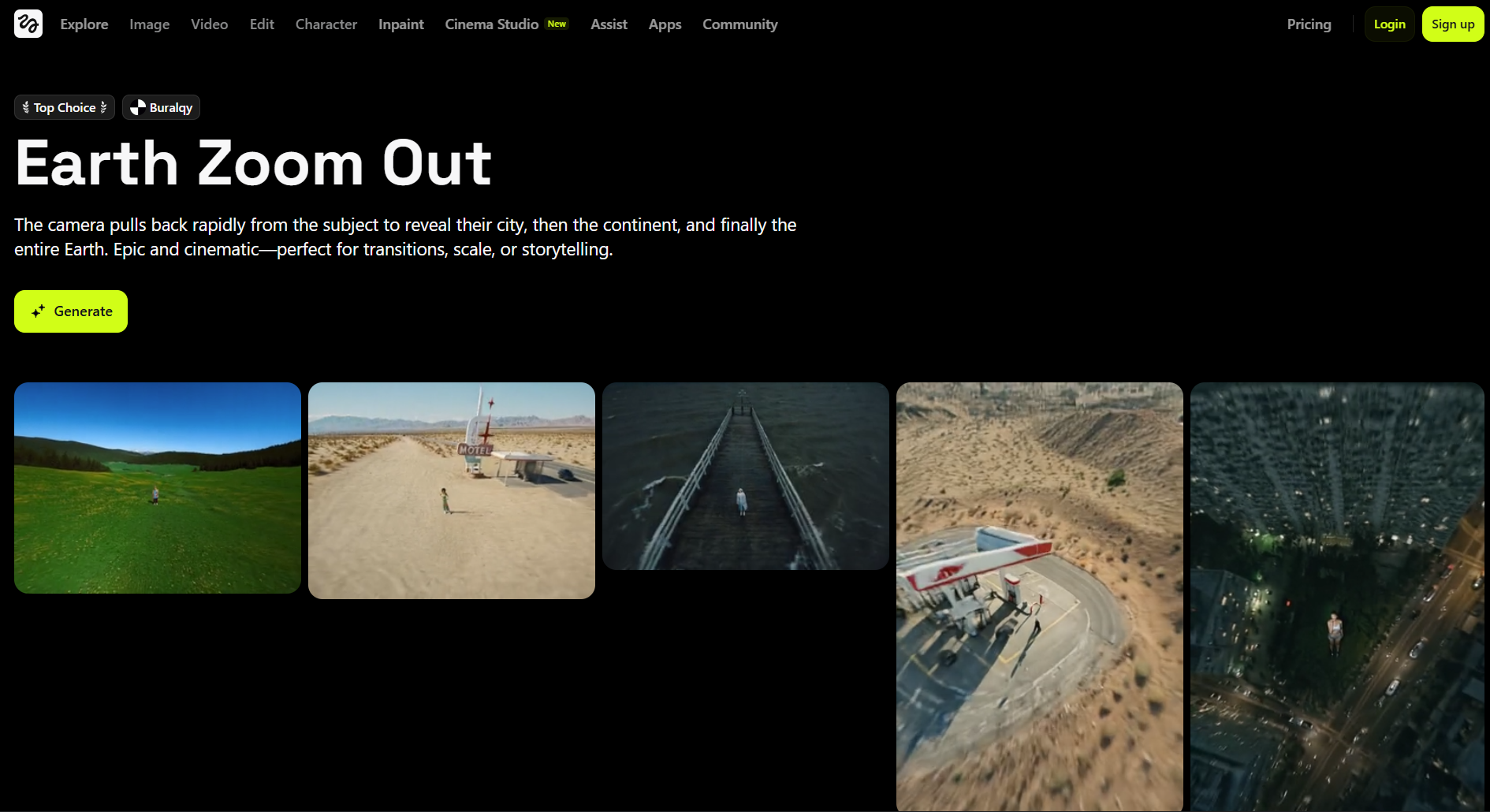
The motion effect helps you create a cinematic AI Earth Zoom Out from a single image, without relying on complex 3D pipelines. In the process, you move step by step through effect selection, image input, prompt guidance, and rendering controls to shape the final output.
Step 1: Open Higgsfield AI and Find the Earth Zoom Out Effect
Start by visiting the Higgsfield AI site and landing on the main dashboard. You will see a gallery of featured video effects, each displayed with a preview clip. Scroll through the horizontal effects menu above the previews. Select Earth Zoom Out to open the effect workspace and begin.
Step 2: Review Examples and Start Your Generation
After selecting the effect, you will see several high-quality sample videos by other creators. Each example demonstrates different pacing, framing, and zoom depth. Click the Generate button to open the creation interface.
This takes you into the main workflow editor.
Step 3: Upload or Attach a Reference Image
Your reference image drives most of the final output quality. Upload a photo or generate one using the available in-platform tools. For best results, make sure your image meets these conditions:
- High image quality with precise details and proper lighting
- Visible background that provides environmental context
- Outdoor scenes that include buildings, landscapes, or open skies
Pro Tip: Start with an HD image around 1920 × 1080 pixels to preserve clarity during zoom transitions. Also, avoid close-up portraits with plain backgrounds, as they limit spatial expansion.
Step 4: Write a Clear and Structured Prompt
Although the image matters most, the prompt guides motion, pacing, and framing. You can click any example clip to view the prompt used for that result.
Use this simple structure when writing your own prompt:
- Describe the subject and environment.Example: “A person standing on a quiet city street during golden hour.”
- Explain how the camera should move.Example: “The camera slowly zooms out in a smooth, cinematic motion.”
- Define what appears during the zoom.Example: “Buildings come into view, followed by the city skyline, clouds, and the Earth’s curvature.”
- Specify how the video should end.Example: “The Earth appears fully visible, rotating gently in space with stars in the background.”
Key insight: Clear camera motion instructions improve consistency across generations.
Note: If you want to keep your original wording unchanged, turn off the Enhance On option in the prompt editor.
Also Read: Advanced Expert Prompts For Video Generation
Step 5: Select a Model and Adjust Advanced Settings
At the bottom of the generation panel, choose a model that best fits your needs.
- Lite model for free users, with longer queue times
- Standard or Turbo models for faster, higher-resolution output
Click the slider icon to access advanced settings, where you can:
- Choose a video length, usually three or five seconds
- Set a generation seed for repeatable results
- Adjust inference steps to balance render time and detail
Did you know? Using the same seed helps maintain visual consistency across multiple renders.
Step 6: Generate and Download Your Video
Once everything looks correct, click Generate to start rendering. Processing time depends on the selected model and queue availability.
When rendering finishes, click the download icon in the top-right corner. Your AI Earth Zoom Out video is now ready for editing, publishing, or automation workflows.
Go further with dynamic Earth zoom-out visuals using Seedance 1.0 Pro on Segmind.
Even with a strong generation, small editing steps can significantly improve performance on social platforms. That’s where post-download optimization becomes essential.
Post-Download Editing and Publishing Considerations
Once your AI Earth Zoom Out video is rendered, the work is not entirely done. Higgsfield focuses only on generation, so you need a video editor to finalize the clip for social platforms. Start by importing your downloaded video into your preferred editing tool. Carry out the following.
- Resize the video for social media: Higgsfield outputs videos using the same aspect ratio as your reference image, which is often horizontal. This format rarely performs well on short-form platforms. So adjust the canvas to a vertical 9:16 aspect ratio, which works best for TikTok and Instagram Reels. Reposition the frame so the subject remains centered during the zoom-out.
- Refine the video quality: Use the ESRGAN video upscaler on Segmind to upsample 1080p to 4K for sharper, clearer video.
- Create a smooth loop effect: Many viral versions of this trend use looping to extend watch time. To recreate this effect, duplicate your clip and reverse the second copy using Segmind's AI Video Loop Maker. When played back-to-back, the zoom-out and reverse motion feel continuous.
- Enhance the final output: After resizing and looping, you can personalize the video further:Key insight: Clean framing and smooth looping matter more than heavy effects for this format.
- Add trending background music to amplify emotion.
- Use subtle sound effects during the zoom transition.
- Overlay short text or captions to reinforce your message.
Also Read: Sora AI Video Generation: A Comprehensive Guide
Once edited, export in high quality and publish directly to your target platform. These small post-download steps often make the difference between an average result and a truly viral Earth Zoom Out video.
That said, the Earth Zoom Out effect is not just visually impressive. It solves real storytelling, communication, and engagement challenges across industries. By shifting perspective from local detail to the global scale, you can convey context, emotion, and scope in ways static visuals cannot.
Where the Earth Zoom Out Effect Creates Real Impact
Use Case Category | Where It Is Used | How Earth Zoom Out adds Value |
|---|---|---|
TikTok, Instagram Reels, short-form video platforms | Delivers highly shareable, loop-friendly visuals that align with viral Earth zoom trends | |
Education and learning | Classrooms, online courses, training presentations | Visualizes geography, astronomy, and environmental scale in a clear and intuitive way |
Brand campaigns, product launches, and sustainability messaging | Communicates global presence and large-scale impact through perspective shifts | |
Travel and tourism | Tourism boards, travel vlogs, destination marketing | Shows detailed attractions and places them in a global context |
Film previsualization | Film planning and pre-production workflows | Blocks complex camera movements before live shooting begins |
As these use cases move from creative experiments to repeatable production needs, control and scalability start to matter more than the effect itself. That’s where workflow orchestration becomes essential.
Where Segmind Fits Into Your Earth Zoom Out Workflow
Higgsfield is excellent for generating a single Earth Zoom Out clip, but control essentially stops after rendering is complete. You cannot fine-tune motion behavior, automate follow-up steps, or scale production reliably. Segmind becomes the workflow and optimization layer that removes these limitations.
Developers get a serverless API powered by VoltaML that processes media models at high speed. Creators get predictable outputs without touching infrastructure. This is especially important when Earth Zoom Out videos move from experiments into real products or campaigns.
Here’s what Segmind adds beyond Higgsfield’s interface:
- Motion intensity control: Adjust the zoom's intensity instead of relying on fixed presets. You can dial motion down for subtle storytelling or push it higher for cinematic impact. Values closer to 0.3 indicate subtle emotional focus, while values closer to 1.0 indicate a push toward dramatic cinematic impact. (Range: 0 to 1)
- Built-in NSFW filtering: Automatically block unsafe or explicit outputs, which is critical for public-facing apps, brand campaigns, and user-generated workflows.
- Webhook-based automation: Get notified when a render finishes so that you can trigger downloads, edits, or publishing without manual checks.
- PixelFlow automation pipelines: Combine Earth Zoom Out–style effects with other image, video, or audio models. You can run these workflows via API inside your own product or internal tools.
- Reduced time-to-download: On Segmind, an average Earth-zoom-style video completes in approximately 175.05 seconds, under five minutes. This is significantly faster than the roughly 45-minute queue times often experienced on Higgsfield’s Lite plan.
Segmind turns Earth Zoom Out from a one-off creative effect into a controlled, scalable media workflow. Moreover, you pay only for what you use, with transparent pricing and no long-term commitments. This makes it easy to test, iterate, and deploy at scale.
Also Try: Higgsfield Speech 2 Video
Conclusion
Higgsfield AI Earth Zoom Out works best when you design for clarity of perspective instead of visual complexity. Strong spatial context, clean environments, and deliberate camera direction allow the zoom to feel natural and immersive. Starting simple helps you understand how scale, motion, and depth interact across each generation.
As you move beyond experimentation, consistency and throughput become critical. This is where Segmind adds unique value. It lets you standardize motion behavior, automate multi-step workflows, and reduce turnaround time without sacrificing creative intent. The result is better videos and a repeatable system that supports real production, iteration, and growth.
FAQs
1. What type of reference images fail most often with Earth Zoom Out generation?
Images with shallow depth of field, indoor scenes, heavy motion blur, or flat backgrounds usually fail. The model struggles when there is no environmental context to extrapolate buildings, terrain, or atmospheric depth during the zoom sequence.
2. How realistic are AI Earth Zoom Out videos compared to traditional satellite footage?
AI Earth Zoom Out videos simulate realism rather than capture real satellite movement. They rely on learned spatial patterns, textures, and lighting models, which look convincing for storytelling but should not be treated as geospatially accurate data.
3. Does Earth Zoom Out work better for urban or natural locations?
Urban scenes generally perform better because buildings provide clear spatial anchors. Natural landscapes can work, but results vary depending on visible landmarks, terrain contrast, and atmospheric cues in the source image.
4. Can Earth Zoom Out videos be used in commercial projects safely?
Yes, but only if you review the licensing terms of the generation platform and any added music or assets. For brand or public-facing use, content moderation and consistency checks are crucial before publishing.
5. What causes horizon bending or scale distortion in some outputs?
Distortion usually occurs when the model transitions too quickly between ground-level and orbital perspectives. Ambiguous terrain geometry or conflicting camera instructions can exaggerate curvature or unnaturally compress spatial depth.